


AKY-730PRO

User Manual

Product Overview

The AKY-730Pro is a next-generation dash cam for motorcycles and bicycles, designed to make every ride safer and more reassuring. Equipped with the Sony STARVIS 2 IMX678 sensor, it captures crisp 4K footage day and night, while EIS stabilization helps keep video smooth on rough roads. The built-in 1.14-inch display shows key ride data like speed, distance, and battery level at a glance, and the 3500mAh battery supports up to 6 hours of recording. You can also connect it to the mobile app to view and manage your footage anytime.

Package List

Optional Accessories

Components Details

Power Button

GPS

Touchscreen

Heat sink

Threaded Port

Type-C Port

Reset Button: Press with the included pin tool to reset the device.

Pin-Style Charging Interface

SD Card Slot

Mount Installation

Choose your preferred mount from the included options based on your riding needs. Secure it firmly to your motorcycle or bicycle handlebar, then attach the 730Pro to the mount.

U-Bolt Mount Installation

Alt image

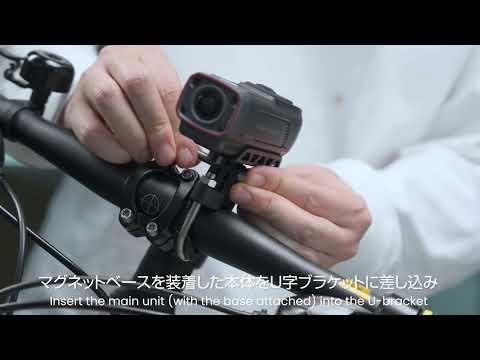
To install the U-bolt mount, first prepare the camera, the magnetic swivel base, the U-bolt clamp, the screws, the screwdriver, and the anti-slip rubber pad. Attach the magnetic swivel base to the camera body and fasten it securely with the T30 screwdriver.

Next, position the U-bolt mount on the handlebar of your bicycle or motorcycle. After confirming the mounting position, tighten the clamp securely with the hex wrench and apply the rubber pad where needed.

Then connect the magnetic swivel base to the U-bolt mount using the long screw. Adjust the camera to your preferred angle, and tighten it firmly with the T30 screwdriver.

note

If the mount still feels loose after installation, place the included rubber shims inside the clamp to improve stability. Before riding, make sure all screws are fully tightened and the mount is securely fixed so the camera remains stable on the road.

Title

Extension Handlebar Mount (Quick Release)

Alt image

For the extension handlebar mount, prepare the extension mount, the GARMIN quick-release mount kit, and the camera unit. Start by removing the fastening screw, then choose a suitable position on the handlebar. Loosen the clamp, fit it onto the handlebar, and tighten it securely.

Attach the GARMIN quick-release plate (male mount) to the camera base, then tighten the screws fully. Keep the mount base parallel to the handlebar, insert the male mount into the base, and rotate it 90 degrees toward the front of the bike until it locks into place.

After that, adjust the camera to the best vertical angle and tighten the base nut securely.

Note

Make sure the mounting position does not interfere with safe riding or block your view. When adjusting the mount, avoid contact with other parts of the bike. To prevent loosening during use, check the mount and all connecting parts regularly and make sure everything remains secure.

Waterproof Charging Cable Connection

Before use, prepare the camera, the included waterproof charging cable, and the waterproof gasket.

Open the rear latch and remove the waterproof cover. Insert the waterproof gasket into the rear groove, making sure it is fully seated and aligned properly.

Attach the waterproof charging cover to the rear of the camera at a slight angle, fit the bottom into place first, then press and lock the top securely.

Connect the charging cable to a power source and check the indicator light. A green light means the device is charging normally.

After removing the waterproof charging cable, always reinstall the waterproof cover to maintain water resistance.

note

1. The waterproof gasket is pre-installed at the factory. Each time you open the rear cover, make sure the gasket is still properly seated and securely in place.
2. When charging through the Type-C port, the device is not fully sealed. Keep it away from water.
3. When using a power bank, make sure it has enough power to support normal device operation.

Charging & Fast Charge Compatibility

Type-A Direct Input: Fast charging is supported when the waterproof charging cable is connected directly to a USB Type-A power source.

Type-C to Type-A Adapter: Fast charging is not supported when using a USB Type-C to Type-A adapter. In this setup, charging will run at standard speed only.

MicroSD Card Requirements

The 730Pro does not include a microSD card. Before using the device, please insert a U3-rated microSD card (sold separately) to ensure stable recording performance. Using a card with insufficient speed may cause recording lag, dropped frames, or missing footage.

The device supports microSD cards up to 256GB. You can choose the card capacity based on your recording needs, but we recommend using a card with at least 32GB of storage.

For the best compatibility and reliability, we strongly recommend using the microSD card sold by AKEEYO, which helps reduce issues caused by speed, quality, or compatibility differences.

SD Card Installation

The microSD card slot is located on the bottom of the device. Open the protective cover fully before inserting the card.

Insert the microSD card in the correct direction, then gently push it in until you hear or feel a click. After installation, close the protective cover firmly and make sure it is fully sealed.

Power on the device and confirm that the system recognizes the microSD card correctly. For the best performance and stability, we recommend formatting the card in the device settings before first use.

SD Card Removal

Before removing the microSD card, always power off the device first to help prevent possible data corruption.

Open the card slot cover, then gently press the card inward until it pops out. Remove it carefully, and close the protective cover securely afterward.

note

1. Always power off the device before removing the microSD card.
2. Do not force the card into or out of the slot, as this may damage the card or the slot.
3. microSD cards are sensitive storage devices. Avoid frequent insertion and removal, especially in harsh environments, to help extend card lifespan.
4. Keep the card slot area clean and free from dust or debris to ensure normal operation.

Basic Operations & LED Status Guide

The LED indicators help you quickly understand the device status at a glance. In general, red relates to recording functions, green relates to charging status, and blue relates to Wi-Fi connection or SD card status. By checking the light color and flashing pattern, you can easily tell what the device is doing.

Power On / Off

Press and hold the Power button for 5 seconds to turn the device on or off.

Power Off: Indicator lights off 

Power On: Red indicator flashes slowly + blue Wi-Fi indicator stays on

Title

Start / Stop Recording

Press once while recording to stop recording. Press once again while stopped to resume recording.

Recording Stopped: Red indicator stays on 

Recording Normally: Red indicator flashes slowly

Title

Charge While Recording

When the device is powered off, connect external power to start charging. Disconnecting external power will automatically turn the device off. Note: This feature is disabled by default and must be enabled in the app.

Charging: Green indicator stays on 

Charging Complete: Green indicator turns off

Title

Loop Recording

Red indicator flashes slowly

Title

Emergency Recording 

Triggered when the device tilts or detects an impact.

Red indicator flashes rapidly

Title

Parking Monitor

If an impact is detected while the device is powered off, it will automatically turn on and the red indicator will flash rapidly. Recording stops automatically after 30 seconds, then the device powers off again. 

Note: This feature is disabled by default and must be enabled in the app.

Red indicator flashes rapidly

Title

Firmware Update

Insert the SD card while the device is powered off, then connect external power to start the update.

Blue indicator flashes rapidly

Title

SD Card Not Detected / SD Card Error

Blue indicator flashes rapidly

Title

Factory Reset

While recording is stopped, press the Power button 5 times continuously to restore factory settings. The device will automatically shut down and restart.

Screen Functions Overview

Startup & Main Screens

Title

Settings Menu

From the Home screen, swipe up from the bottom to open the menu.

Note: After opening the settings menu, please wait about 2 seconds for the video preview to stop, then continue with your operation.

Open the Menu

1. Settings
Wi-Fi on/off, GPS on/off, and resolution adjustment


2. Battery Information
Check battery level and remaining runtime


3. Wi-Fi Information
View the Wi-Fi name and password


4. GPS Information
View GPS status and information

5. Ride Information
Check ride data and trip information


6. Indicator Light Brightness
Adjust the brightness of the indicator lights


7. Language
Switch the system language


8. Format microSD Card

9. Firmware Version

App Overview

The AKEEYO App connects to the AKY-730Pro via Wi-Fi, allowing you to use your smartphone to preview live footage, play back recordings, edit clips, download files, delete files, and share videos. You can also adjust device settings directly in the app.

Install the App

scanning the QR code

search for “AKEEYO” in the App Store or Google Play

How to Connect the Camera

Open the AKEEYO App

Allow required permissions: Enable the permissions requested by the app, including local network access and Bluetooth if prompted.

Add your camera: Tap Add Camera in the app.

Connect to the camera’s Wi-Fi: Select the Wi-Fi network broadcast by the camera, then return to the app.

Confirm Wi-Fi access if prompted: Allow the app to access the selected Wi-Fi network to complete the connection.

Camera connected successfully: Once connected, your camera will appear in the device list and is ready to use.

Wi-Fi & App Connection

1. Wi-Fi is enabled by default when the camera is powered on. If Wi-Fi has been turned off, press the button twice briefly to turn it back on.
2. Open the AKEEYO App and tap “Add Camera.” Then search for the camera’s Wi-Fi network on your phone.
3. Select the camera’s Wi-Fi and enter the password to connect. The default Wi-Fi name is AKY-730Pro-** and the default password is 12345678.


Notes:

The camera’s Wi-Fi network will only appear when the main unit is powered on.
The last 4 characters of the Wi-Fi name are random, so each device has a unique Wi-Fi name.
The camera’s Wi-Fi name and password can be changed on the App.

App Main Functions

After the camera is connected, you can use the app to access the following functions.

Battery Status

Recording Status

Screen Rotation

Timestamp

Start / Stop Recording

Take Photo

Camera Files

Camera Settings

Playback & Download

Tap Camera Files to view recorded videos and photos.

To download multiple videos at once, tap Select in the top-right corner, choose the files you want, and start the download.

Downloaded videos will be marked as Downloaded in the app.

Edit Downloaded Videos

You can adjust the playback speed of downloaded videos.

Downloaded videos can also be shared, edited, captured as screenshots, or deleted.

After editing, tap Done and check the saved file in My Album.

Where Is the Album?

Open the AKEEYO App, then tap Album.

All downloaded and edited videos will be stored there.

Power Saving Mode

Power Saving Mode can only be enabled in the AKEEYO App.
After it is turned on, a confirmation prompt will appear in the app and must be confirmed manually. Once confirmed, the camera will switch to the Power Saving Mode screen, Wi-Fi will be turned off, and the app will disconnect from the device.

To exit Power Saving Mode, tap Exit on the camera screen. The device will then return to its previous settings and go back to the Home screen.

Enable Power-Saving Mode in the AKEEYO App Settings.

Tap “Exit Power Saving Mode” on the 730Pro.

What Changes in Power Saving Mode

When Power Saving Mode is enabled, the following functions will be limited to reduce power consumption:

  • Wi-Fi off
  • GPS off
  • Gyroscope / EIS off
  • HDR / WDR off
  • Recording resolution fixed at 1080P 30 fps
  • Screen stays on during operation and turns off automatically after 5 seconds of inactivity

Auto Exit When External Power Is Connected

In the app, you can also enable or disable Auto Exit Power Saving Mode When External Power Is Connected. This option is enabled by default.

  • When enabled:
    If the camera is in Power Saving Mode and external power is connected, it will automatically exit Power Saving Mode, restore the previous settings, and return to the Home screen.
  • When disabled:
    The camera will remain in Power Saving Mode even after external power is connected.

Recording Functions

Loop Recording

Press and hold the Power button for 5 seconds to turn on the camera. After startup, the device enters Loop Recording mode automatically.

When the SD card becomes full, the system will automatically overwrite the oldest files and continue recording.

Emergency Recording

Emergency Recording must be enabled through the AKEEYO App by setting the G-sensor sensitivity to High, Medium, or Low.

When an impact is detected while the camera is on, the red indicator will flash rapidly and Emergency Recording will start automatically. After the event recording ends, the camera will return to Loop Recording mode.

Emergency files are protected and will not be overwritten.

Important Notes

1. If the G-sensor sensitivity is set to High, even small bumps may trigger Emergency Recording.
2. If the G-sensor sensitivity is set to Low, only stronger impacts may trigger Emergency Recording.
3. Emergency files usually take up more storage space and are not overwritten automatically. If too many files accumulate, back them up regularly and delete them when needed.
4. Files can be deleted in the mobile app, or by connecting the camera to a computer with the included charging cable.
5. Emergency recordings are stored in the Event folder on the SD card.

Parking Monitor Recording

Parking Monitor must be enabled in the AKEEYO App.

When the camera is powered off and detects an impact, it will automatically start up and the red indicator will flash rapidly. The camera records for 30 seconds and then powers off automatically.

Parking Monitor files are protected and will not be overwritten.

Important Notes

1. To use Parking Monitor, the G-sensor sensitivity must be set to High, Medium, or Low in the app.
2. Parking Monitor files take up more storage space and are not overwritten automatically. Back up and delete them regularly if too many files accumulate.
3. Parking Monitor recordings are stored in the Event folder on the SD card.

Photo Capture

Connect the camera to the mobile app via Wi-Fi, then tap the Photo button in the app.

Note: The photo function can only be used through the mobile app.

App Settings

Below are the main settings available in the AKEEYO App.

Power Saving Mode

On / Off

Title

Auto Exit Power Saving Mode When External Power Is Connected

On / Off

Title

Record Audio

On / Off

Title

Video Resolution

4K P30 / 4K P28
2K P60 / 2K P55
2K P30 / 2K P28
1080P P60 / 1080P P55
1080P P30 / 1080P P28

Title

Loop Recording Length

Off / 1 min / 3 min / 5 min / 10 min

Title

Exposure Compensation 

-2 / -1 / 0 / +1 / +2

Title

Image Rotation

On / Off

Title

Mirror Image

On / Off

Title

Timestamp

On / Off

Title

Light Frequency

50 Hz / 60 Hz

Title

G-Sensor Sensitivity

High / Medium / Low / Off

Title

Electronic Image Stabilization

On / Off

Available only at: 1080P P30/P28, 2K P30/P28, 4K P30/P28

Title

Auto Screen Off

Off / On

Title

Speed Unit

km/h / mph

Title

Time Zone

-12 to +12

Title

Night Enhancement

On / Off
Night Enhancement and EIS cannot be enabled at the same time.

Title

Power On When External Power Is Connected

On / Off

Title

Delayed Shutdown

5 min / 30 min / 1 hr / Always On / Off

Title

Parking Monitor

On / Off

Title

Time-Lapse Recording

1 sec / 1 fps, 0.2 sec / fps, 5 sec / fps, Off

Title

Wi-Fi Name

Default: 730Pro-**

Title

Wi-Fi Password

Default: 12345678

Title

Format microSD Card

Confirm / Cancel

Title

Factory Reset

Confirm / Cancel

Important Notes

Time-Lapse Recording: The camera records frames at set intervals instead of continuous full-motion video. This helps save storage space and supports longer recording duration.


Delayed Shutdown: When a delayed shutdown time is set, the camera will continue running for the selected time after external power is disconnected, then shut down automatically. If this function is disabled, the camera will turn off immediately when external power is disconnected.

Viewing Recorded Videos and Photos

Option 1: Use the Dedicated Video Player

1. Turn off the camera and carefully remove the microSD card.
2. Insert the microSD card into your computer using a card reader.
3. After the computer recognizes the card, open the GXPlayer file stored on the microSD card and follow the on-screen instructions to install the dedicated video player.
4. Once installed, select the video file you want to view and play it on your computer.

Important Notes

Video files can be viewed directly on a computer. However, route tracking data cannot be displayed unless the video is played with a compatible player that supports .gpx files, such as our GPS playback software. To ensure route data is recorded, GPS must be enabled on the 730Pro before recording starts.

Option 2: View Files Directly on Your Computer

1. Turn off the camera and carefully remove the microSD card.
2. Insert the microSD card into your computer using a card reader.
3. Open the folders on the microSD card: Event, Normal, GPSdata, and Photo.
4. Select the file you want to view and play it on your computer.

File Folder Overview

Event — Emergency and event recordings
Normal — Regular video recordings
GPS data — GPS data files
Photo — Photo files

Factory Reset

Manual Reset Using the R Button

If the camera freezes or becomes unresponsive, you can insert a pin into the R reset hole near the charging port to force the device to shut down.

Note: This only forces a shutdown. It does not restore factory settings.

Reset by Pressing the Power Button 5 Times

When recording is stopped, press the Power button 5 times continuously. The device will shut down, restart automatically, and restore the factory settings.

Reset in the App

You can also restore factory settings in the AKEEYO App.

Go to Camera Settings in the app, then tap Factory Reset. All device settings will be restored to their default values.

Firmware Update

Option 1: Update via the App (OTA)

When using the app for the first time, connect your phone to the camera’s Wi-Fi and add the device in the app. Once the device is added, the app will read the current firmware version.

When your phone has internet access, open the app again. The app will check the cloud server to see whether a newer firmware version is available for your device.

If a new version is found, the app will display an update prompt. Follow the on-screen instructions to complete the update.

Check for Updates Manually

In the app, go to More > About > Version Update to manually check whether a new firmware version is available.

Note: Your phone must be connected to the internet when checking for updates and downloading new firmware.

Option 2: Update via microSD Card

1. Insert the microSD card into your computer using a card reader.
2. Copy the latest firmware update package to the microSD card. The firmware file should use the .bin file format.
3. Insert the microSD card containing the firmware file into the camera.
4. Power on the camera. The device will detect the firmware package and start the update automatically. An update progress screen will appear. The update is complete when the progress reaches 100%.
5. After the update is finished, format the microSD card in the camera before normal use.

Important Notes

1. Make sure the device has a stable power supply during the update. Do not power off the device during the update process, or the firmware may be damaged.
2. For OTA updates, insert a microSD card before starting the update, then format the card in the device after the update is complete.
3. If the microSD card is not formatted after the update, the camera may try to run the firmware update again each time it is powered on.

Parameters

  • Camera & Recording

  • Connectivity & Device

Water Resistance

IP67

Title

Sensor

8.0 MP, 1/1.8" sensor, up to 60 FPS

Title

Field of view

Diagonal 146° / Horizontal 125° / Vertical 68°

Title

Aperture

F/1.7

Title

Video Resolution

4K at 30 fps / 28 fps
2K at 60 fps / 55 fps / 30 fps / 28 fps (HDR/WDR)
1080P at 60 fps / 55 fps (HDR/WDR)

Title

Electronic Image Stabilization
 

Supported

Title

HDR / WDR

Supported

Title

Audio Recording

Noise reduction supported

Title

Recording Modes

Loop Recording / Emergency Recording / Parking Monitor / Photo / Pre-Recording
Pre-Recording uses real-time cache with trigger lock

Title

Loop Recording Length

1 min / 3 min / 5 min / 10 min / Off
Default setting: 1 minute

Title

Image / Video Format

JPEG / MP4

Title

Gyroscope Sensitivity

High / Medium / Low / Off

Display

1.14" touchscreen

Title

Bluetooth

Supported

Title

Wi-Fi

Supports 2.4 GHz / 5 GHz direct device-to-phone Wi-Fi only.
Does not support connection to home, vehicle, or Starlink Wi-Fi networks.

Title

GPS

Supported

Title

Battery

Built-in 3500mAh battery
Up to 3.5 hours at 4K 30 fps
Up to 6 hours in power-saving mode

Title

Charging Input 

5V / 2.2A

Title

Interface

USB Type-C with waterproof charging cable
Supports charging while recording
11W fast charging supported

Title

Light Source Frequency

50 Hz / 60 Hz

Title

Firmware Update

OTA / microSD card

Title

Footage Playback

AKEEYO App / PC

Title

Storage

microSD card(sold separately)
16GB to 256GB, U3 recommended
Industrial-grade high-speed card recommended

Title

Operating Temperature

-20°C to 65°C